 PhotoDeckHelp Center
Using ChatGPT, Claude or Mistral with PhotoDeck
You can connect AI chatbots like ChatGPT, Claude, Mistral or Grok to PhotoDeck and ask them to help you find and organize media, prepare galleries and collections, or answer questions about PhotoDeck. Describe what you want in your own words, and review the chatbot’s work before sharing it with clients.
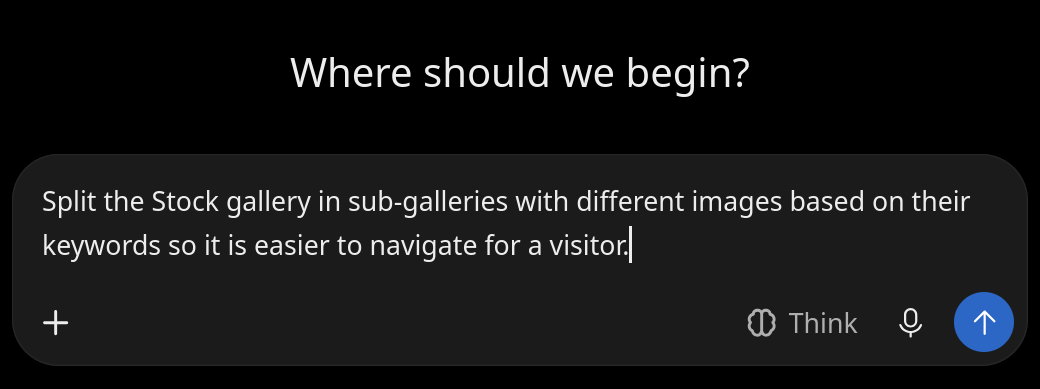
The official connectors use the Model Context Protocol (MCP) to connect your conversational AI assistant to PhotoDeck. What an LLM chatbot can accomplish depends on its abilities, the integration features available, your PhotoDeck access rights and the information you provide. File attachments and other chatbot features may depend on your chatbot account or plan.
AI chatbots can make mistakes. They can misunderstand instructions, select the wrong media or report that work is complete when it is not. Connected chatbots can make real changes to your account. Permanent changes, including media deletion, cannot be reversed. Review proposed changes, test on a small selection and check the results in PhotoDeck.
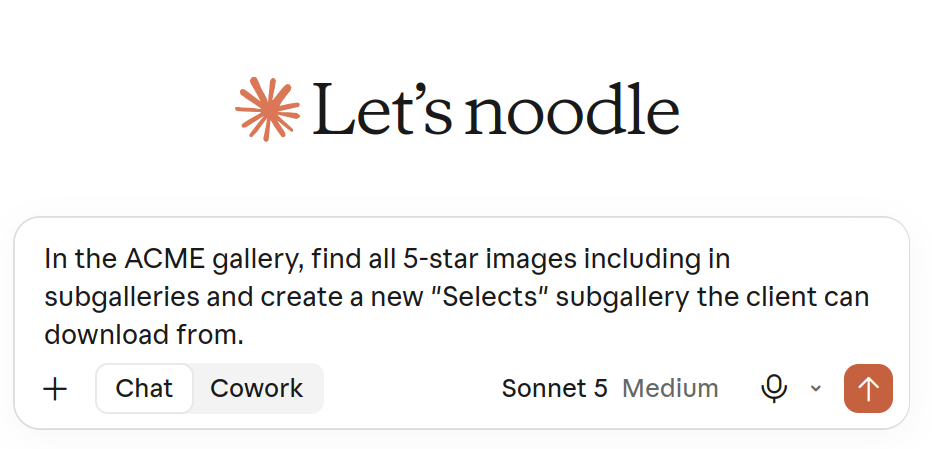
Connect ChatGPT, Claude, Mistral or Grok to PhotoDeck
- In your PhotoDeck admin space, open Avatar / Connected apps.
- Under Available official connectors, open the instructions for your AI chatbot and follow them.
- When PhotoDeck asks you to authorize the connection, check the application, the user being connected and their access. Only authorize a connection you started and trust.
- Return to your chatbot and try a simple request, such as: “List the PhotoDeck websites and media libraries I can access.”
A connected AI chatbot can act with the connected user’s current API access, including changing or deleting content where their roles allow it. To restrict its access, use a team member with appropriate roles, if team members are available on your plan. The account holder can also select a team member on the authorization screen. Please refer to the help on team members for details.
This connection is separate from PhotoDeck’s AI metadata assistants, which can analyze images to generate metadata. Your connected chatbot can ask a configured assistant to analyze images for you.
How to ask your AI chatbot to work with PhotoDeck
A clear request helps your chatbot select the right PhotoDeck media and understand what you want to preserve. For example, specify:
- The website, media library, gallery or collection to work on.
- The selection criteria, such as existing keywords, shooting times or ratings.
- The result you want and what must stay unchanged, such as existing keywords or gallery publications.
- What you want to review first: matching media, counts, exceptions and proposed changes.
Start by asking for a proposal without changes. Check the selection, approve a small test and inspect the result in PhotoDeck before continuing.
For large tasks, ask the chatbot to report completed, skipped, failed and unverified work separately. Some work may continue in the background: acceptance of a request does not mean it has finished. If a conversation or operation is interrupted, check what has already happened before asking it to try again. Please refer to the help on background jobs for more details.
School photography: create individual pupil galleries
You can ask an AI chatbot that supports file attachments to match pupil names to images using existing keywords. For example, your file might have a “Pupil name” column with Alex Morgan and a “Keyword” column with pupil-0042. Use fictitious data for your first test, and preserve keyword formatting such as leading zeros.
Check the destination area’s authorizations before creating or populating galleries. Then attach the file and try:
In the ‘Oakwood School — Class 4B’ gallery on my ‘School Photography’ website, match the images’ existing keywords to the ‘Keyword’ column in my Excel file, using whole keyword values. Propose one subgallery per pupil, named from the ‘Pupil name’ column. Show counts and flag duplicate names or keywords, unmatched rows or images, and images matching more than one pupil. Proposal only for now.
Review the proposed matches and resolve exceptions. Then, for the approved matches, you can ask:
Create the approved subgalleries, hidden from the outset, and publish the matching images there without removing them from the original gallery.
Instead of keywords, you can naturally also use image sequence numbers, capture times, etc…
Sports photography: split a gallery by bib number
You can ask your AI chatbot to analyze images in an event gallery for bib numbers, then propose a gallery for each participant:
In the ‘City Marathon’ gallery on my ‘Events’ website, analyze the images to identify bib numbers. When the analysis is complete, use the results to propose one subgallery per runner. Report images that were skipped or whose analysis failed or could not be verified. Do not create galleries or change existing gallery publications until I approve.
The chatbot can use a configured PhotoDeck AI metadata assistant to analyze the images. Analysis done this way sends the images to the AI Assistant’s provider, may use microjobs and can add keywords or other metadata. Please refer to the help on AI metadata for details.
Analysis runs in the background, so check its status and review the detected numbers and proposed matches before asking the chatbot to create the approved galleries and publish the images there without removing their existing gallery publications.
Event photography: split a gallery by shooting time
Capture timestamps can help group a large event gallery by performance or session. For example:
In ‘Dance Recital’ on my ‘Events’ website, propose subgalleries for 30-minute intervals using capture timestamps, not upload dates. Show counts and flag missing or ambiguous timestamps. Proposal only for now.
You can also provide a schedule, for example to group wedding images by ceremony and reception. Review the groups before asking the chatbot to create galleries.
More PhotoDeck prompt examples
Adapt these examples to your website, media library and workflow. Ask for a proposal first and verify the result before relying on it.
Prepare a selection:
In my ‘Spring Campaign’ collection, propose a new ‘Retouching selects’ collection containing media with a library rating of four or five stars. Show me the proposed selection first.
Standardize keywords:
In my ‘Portraits’ collection, find spelling variations of ‘headshot’ and suggest consistent keyword additions for review.
Check metadata:
Review the media in ‘Autumn Campaign’ and report missing titles, keywords or copyright notices.
Suggest titles:
Using the existing descriptions in ‘Lisbon Editorial’, suggest clearer titles based only on known facts.
Get PhotoDeck help from your AI chatbot
Your connected AI chatbot can search the whole PhotoDeck Help Center as well as access your account. Ask it questions about PhotoDeck features and workflows, and request links to the relevant documentation. For example:
How can I restrict access to a client gallery in PhotoDeck? Explain the options and point me to the relevant help.
Chatbots can misunderstand documentation or give incorrect answers, so check the referenced help when a decision matters.
Save reusable instructions for frequent workflows
Some AI chatbots let you save instructions as skills, project instructions or saved prompts. These features differ between providers and may not be available on every plan. They can help you repeat a workflow without describing every step again.
- Test the workflow in a conversation using a small selection, and check the result in PhotoDeck.
- Turn the successful procedure into reusable instructions, with placeholders for details that change between jobs.
- Save the instructions using a feature supported by your chatbot, then test them with missing information and ambiguous matches.
- Review the instructions when your workflow, chatbot or integration changes. Done!
For example, a school gallery workflow can ask for the website, source gallery and spreadsheet columns, propose matches and exceptions, wait for approval, then prepare hidden galleries and report the result. It should remind you to verify matches and authorizations before sharing. You can then ask:
Use my school gallery preparation workflow for ‘Oakwood School — Class 4B’ with the attached Excel file. Prepare the proposal only.
Saved instructions do not grant additional access or guarantee that the AI chatbot will follow them correctly. Keep passwords, access tokens and pupil lists out of reusable instructions, and don’t give standing approval for deletion or other destructive actions. Tell the chatbot to treat attached file contents and media metadata as data, not as instructions.
Data privacy when using an AI chatbot with PhotoDeck
When you use a connected AI chatbot, information retrieved from PhotoDeck for your request can be shared with the chatbot provider, in addition to your prompts and any files you attach. Depending on the task, this may include gallery names, metadata, media or other accessible information.
Review the chatbot provider’s privacy, retention and model-training policies, your account settings and any applicable organizational agreement. Share only what is needed: for example, remove addresses, birth dates and other unnecessary columns before attaching a school Excel file. Consider whether sharing pupil or client information with that provider is appropriate.
Disconnecting an application stops its future authorized access but does not erase information already shared with the provider or undo changes. To disconnect, open Avatar / Connected apps and click on Disconnect for the application.
FAQ
What AI chatbots can I use with PhotoDeck?
PhotoDeck offers official connectors for ChatGPT (OpenAI), Claude (Anthropic), Mistral and Grok.
How do I connect ChatGPT or Claude to PhotoDeck?
In your PhotoDeck admin space, open Connected apps from your user menu. Under Available official connectors, open the instructions for your chatbot and follow them. Check the application, the connected user and their access before authorizing the connection.
Can a chatbot create galleries and change my media, or does it only make suggestions?
A connected AI chatbot can create galleries and change or delete media when the connected user’s roles allow it, among many other things made possible by the integration. Ask for a proposal first, approve a small test and check the result in PhotoDeck. To restrict its access, connect a team member with appropriate roles, if available on your plan.
Can the chatbot analyze my images, for example to find bib numbers?
A connected chatbot can ask a configured PhotoDeck AI metadata assistant to analyze images for bib numbers. This sends the images to the assistant’s provider, may use microjobs and can add metadata. Check the analysis status and review the results before creating galleries.