 PhotoDeckHelp Center
Selling prints
You can either sell self-fulfilled prints (where you manage the printing and shipping process yourself) or leverage our lab integrations to fully automate both production and delivery.
Using pricing profiles, you can easily sell dozens of thousands of different images, potentially offering different products for different images, but you can also create custom product pages with illustrations and texts specific to each image as well as manage inventory for fine-art prints.
To create a new pricing profile and see the available templates, go to My business / E-commerce / Products.

Creating a pricing profile where you manage printing and shipping
You can define exactly all the sizes and options you wish to sell, and two templates are available:
- Prints without options: this pricing profile is a simple price list, where you can create as many sizes as you wish, but without any additional option;
- Prints with options: use this pricing profile when you want to offer additional options like paper type, matting, framing etc… You will then be able to create a complete table with sizes, options and prices.
When an order is placed and paid for, you will receive an email notification so you know when a print needs to be prepared and shipped.
Using an integrated lab for full automation
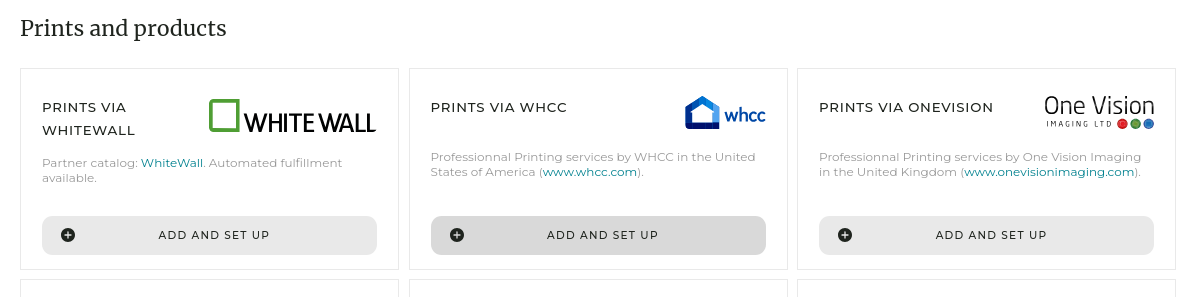
Each integrated lab (WhiteWall, One Vision Imaging and WHCC) has its own pricing profile template.
All products options and sizes offered by the lab are included in the template, and you can easily select what you want to offer to your customers. You keep full control over pricing: you can initialize the prices based on the labs’ prices to get started quickly, and then refine all prices as needed.
When using an integrated lab, it is possible to have the orders automatically forwarded to the lab. The lab will then bill you separately for their work.
For more details on lab integrations, please see the dedicated help page (link below).

Image ratio vs print ratio
When using integrated lab products, or when you specify the physical print size for a size option, the system automatically determines whether the print ratio matches the image ratio (height/width proportion). For any pricing profile, you can specify under the Presentation and Settings tab what happens when ratios don’t match:
- do not offer sizes that don’t match the image’s ratio (+/- 10%), or
- offer your customers the ability to crop the image to match the print ratio.
Image resolution vs print density
Similarly, you can specify what happens when the digital image file does not allow printing in a given size at more than 150 dpi:
- Do nothing and keep the size (for example if you self-fulfill and you know you have higher image resolution available), or
- Automatically add a mention about the minimum recommended viewing distance for the print, so that the customer knows what to expect.
FAQ
What is the difference between prints with and without options?
The simple template is for a basic list of sizes, while the options template allows you to create a table where customers select additional features like paper type or matting.
How does the system handle images that don’t fit a specific print size?
You can set your pricing profile to either hide sizes that don’t match the image ratio or allow the customer to crop the image themselves during checkout.
Why are there missing print sizes on the product page?
Depending on your settings, images that don’t match the print’s height/width ratio may be hidden. You can allow cropping instead, in the pricing profile settings.